
Sometimes you face many problems when you play with an objects in Corel Draw. You don’t want default objects like Circle, Rectangle, Polygon etc… you want your own made shaped object but can’t edit default shape’s objects. Well only one click can help you to converting an objects to curves.
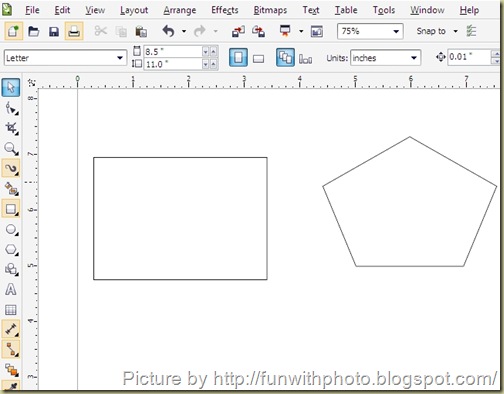
TOP MENUBAR > ARRANGE > CONVERT TO CURVES or CTRL + Q as shown in below screenshot.

This will help you to free an object to be manipulated with SHAPE TOOL. You can also apply this trick on ellipse, an artistic texts and also on certain effects objects like envelops and perspective effects.


How to convert an object to curve?
To convert an object to curve, select an object with PICK TOOL and follow these steps.TOP MENUBAR > ARRANGE > CONVERT TO CURVES or CTRL + Q as shown in below screenshot.

This will help you to free an object to be manipulated with SHAPE TOOL. You can also apply this trick on ellipse, an artistic texts and also on certain effects objects like envelops and perspective effects.
Example :
Well I made this object from above rectangle, Can you believe this??? You can made this type of many shapes and use it to create logos, designs, and your own art.


